We made it to week 7 and GIANTS is now content complete. The next 5 or so weeks will be dedicated to polish and bugfixing.
To start this post, I’ll get into how I created the menu system, and conclude with the fixing of the player tether movement.
In designing the menu, I decided it would use a state machine to keep track of where the menu camera was supposed to be, and move to the correct location if the menu state changes.
switch (currState)
{
case MenuState.e_SplashScreen:
menuCam.SetTarget(startCameraPos);
break;
case MenuState.e_MainMenu:
menuCam.SetTarget(mainMenuPos);
break;
case MenuState.e_Settings:
menuCam.SetTarget(settingsPos);
break;
case MenuState.e_LevelSelect:
menuCam.SetTarget(levelSelectPos);
break;
}
All I need to do is listen for a controller a press and swap between the stages needed. Next, I needed to implement selecting menu elements with the controller. The way I did this was create a list of UI elements for each section (Main menu, settings, level select, etc.). Then, I read in the input of the controller and increase or decrease an index depending on what part of the menu we’re in.
//if we move the controller thumbstick
if (Mathf.Abs(axisToUse) > 0.1f && camScript.isAtPos && menuTimer <= 0)
{
//iterate index to next hovered element
if (axisToUse > 0)
{
index -= 1;
menuTimer = 0.5f;
}else if (axisToUse < 0)
{
index += 1;
menuTimer = 0.5f;
}
}
Then when check what part of the menu we’re in and simply change what the current hovered game object is.
currHover = menuButtons[index];
And then when we listen for the controller input, we activate the event on the hovered button.
//activate hovered button
if (InputControl.GetButtonDown(Controls.buttons.P1A) && camScript.isAtPos)
{
Button selectedButton = currHover.GetComponent<Button>();
selectedButton.onClick.Invoke();
}
This allows us to move backwards and forwards through the level depending on what menu element we select.
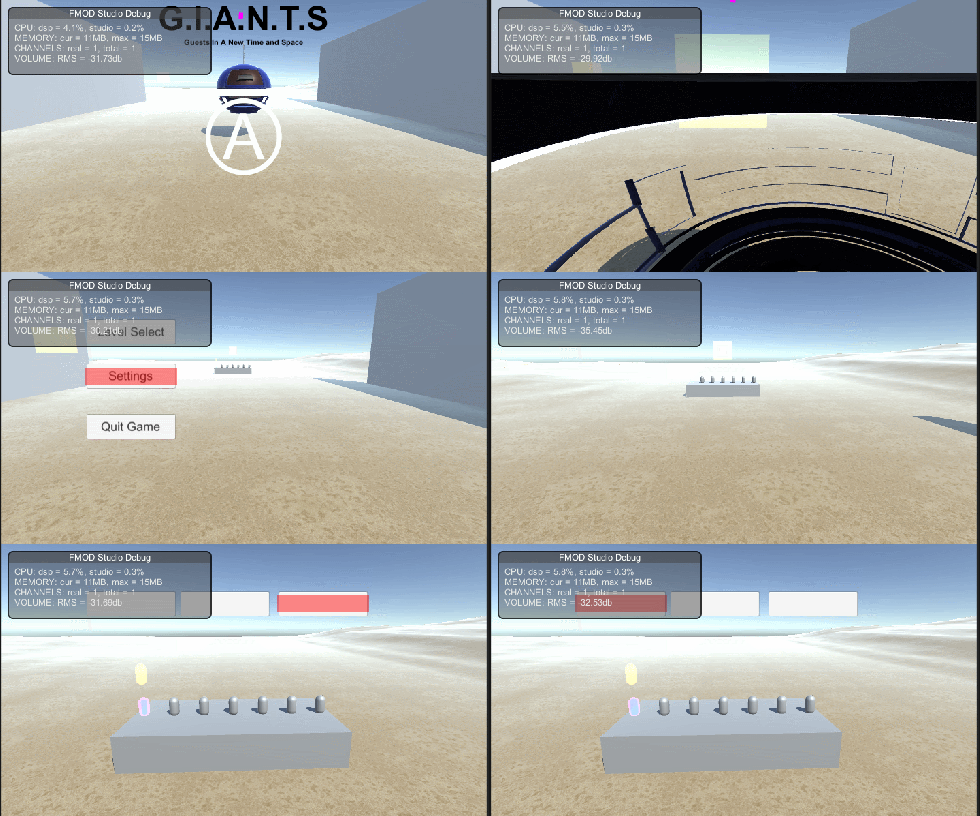
And so indicate what element we’re currently hovering over, I simply got an image and moved it to the location of the currHover.
buttonHover.transform.position = currHover.gameObject.transform.position;
This is the result:
Next working on the tether movements.
So a problem we’ve had for a long time in relation to the tethering is that although it perfectly works as a rope system, it creates a lot of drag on the player, slowing them down a lot.
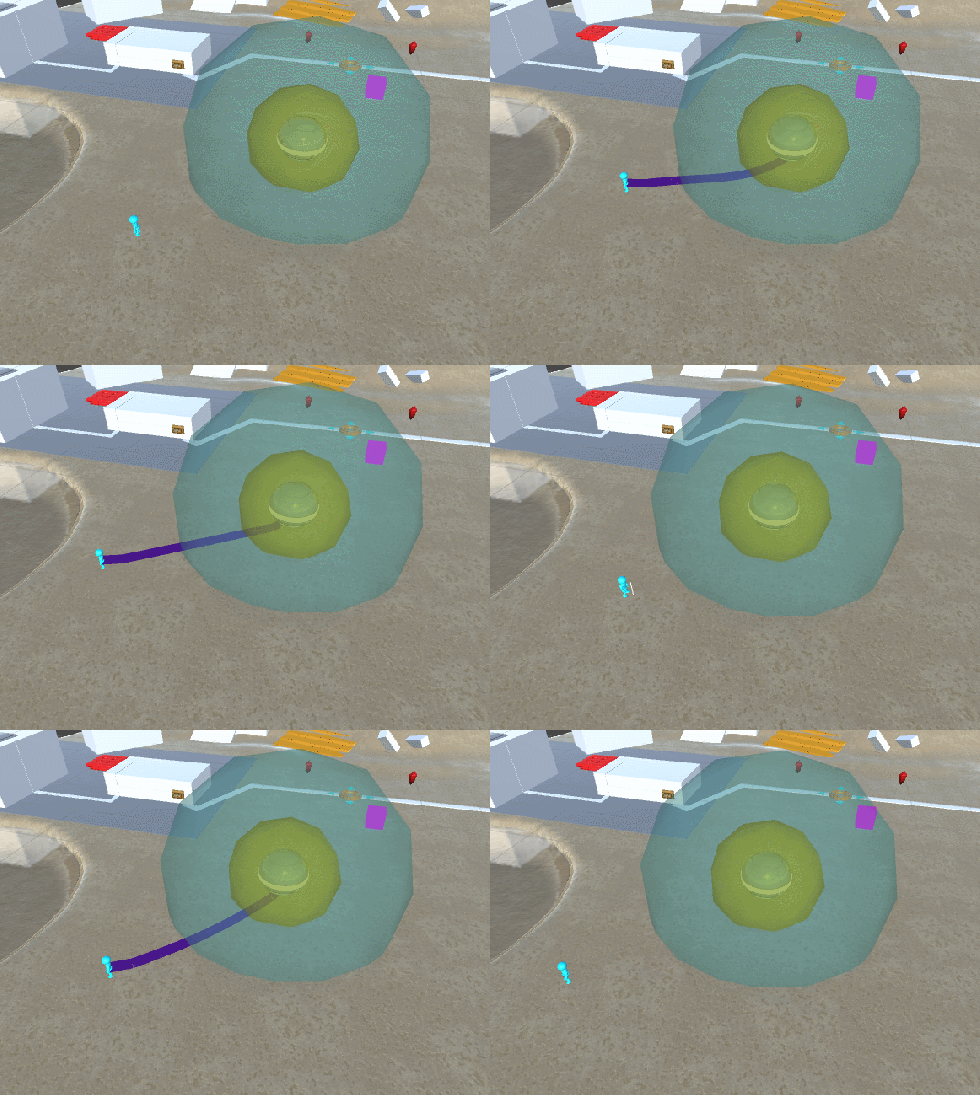
As a temporary solution for testing, we increased the players movespeed when tethered, which resolved most of the problems, however, it was always an impermanent solution, as the players moved way too fast when not pulling against the rope.
As a first solution, I tried changing the compensation values of each segment. This would allow the player to move fine, however when more than one player would tether, EHU would average her position, but as the compensation values had no power, they had no need to stay within range of EHU.
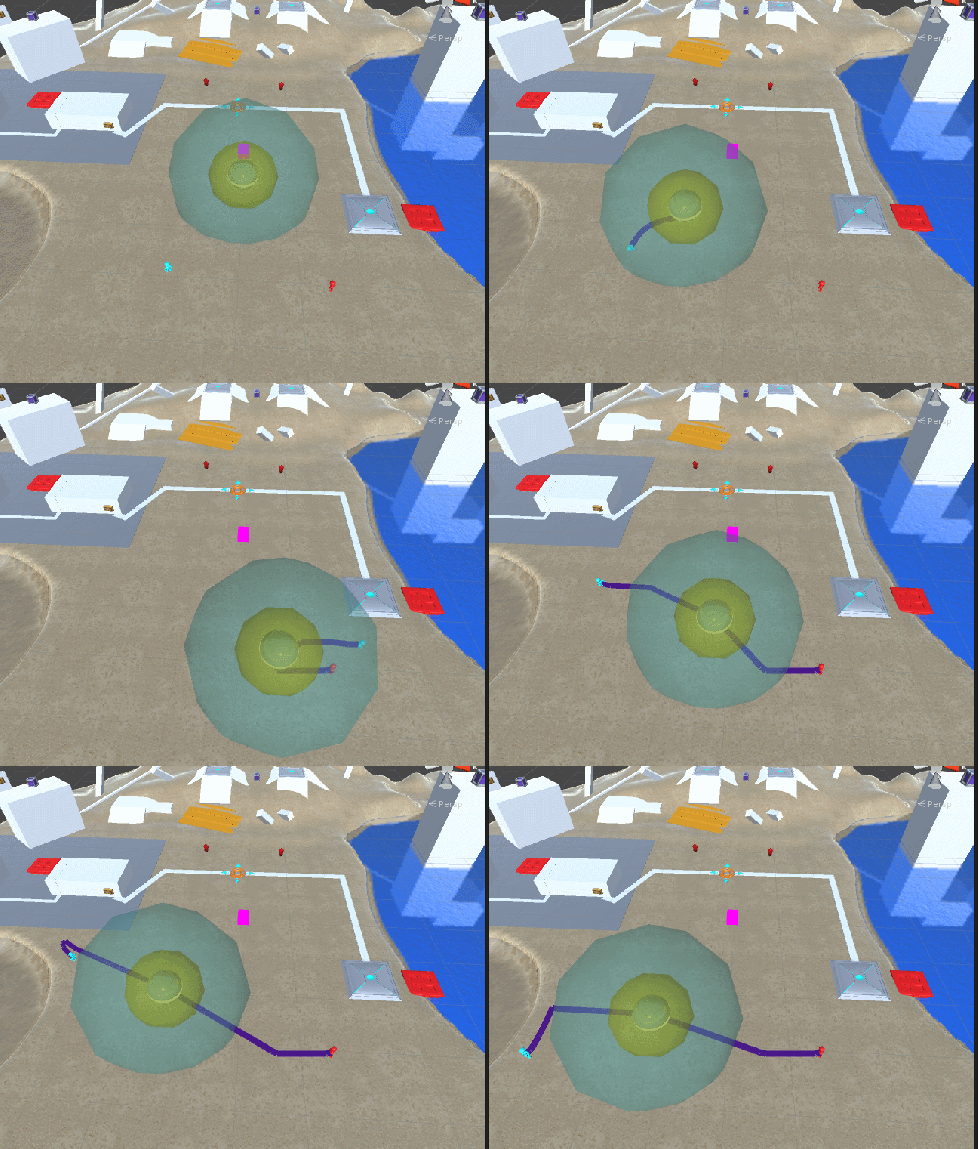
This is because each segment only cares about itself, and not its neighbour. You can see that the segment closest to EHU isn’t moving towards EHU because it doesn’t care to. Changing that segment to try and move to EHU results in the next one along not moving for the same reason.
I next attempted restricting the player a set distance from EHU while tethered, while keeping the compensation values where they were. However, this results in a not very realistic feeling, as the player suddenly stops after a set distance, rather than being restricted by the tether.
After a lot of poking around in the code and headbutting the keyboard, I finally reached a solution.
First, I stopped the player from updating their own position, and added the segment immediately behind the player to have total control of the players tether velocity.
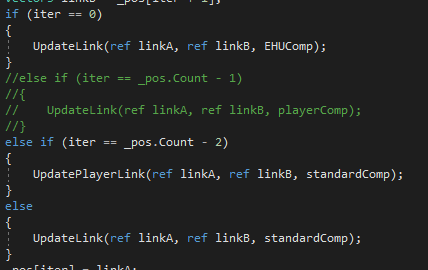
Next I made an update link function specific for the player and the preceding link. Normally, the link will update both itself, and the next one along. This means that the changes are more dynamic and spread across the tether.
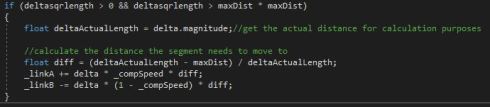
However, we don’t want to always be updating the players segment, we only want to do that if they go well beyond the rope range. To do this, we create a new function that does a separate check for the player.
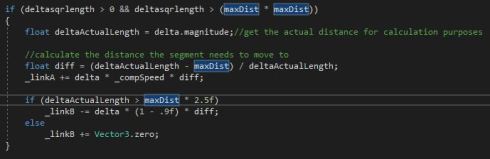
This means the tether system wont even attempt to move the player unless they move much beyond the typical distance constraint. This is the result:
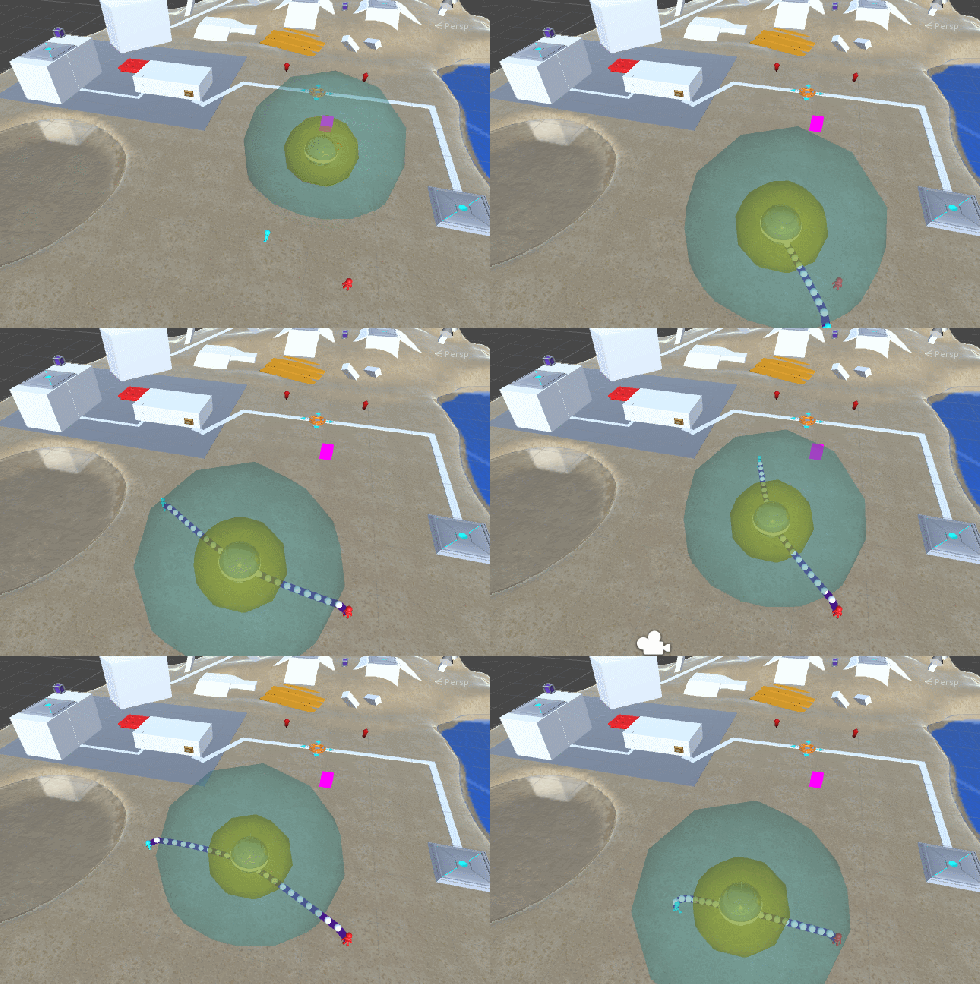
As you can see, the player is totally unrestricted in their movement until they move beyond the range of the previous segment. It does make the tether a little bit more stretchy, as the player has a lot more power in terms of the movement, but it’s a reasonable trade off for free movement for players, while keeping the core of the mechanic.
 Caleb Barton | Games Programmer