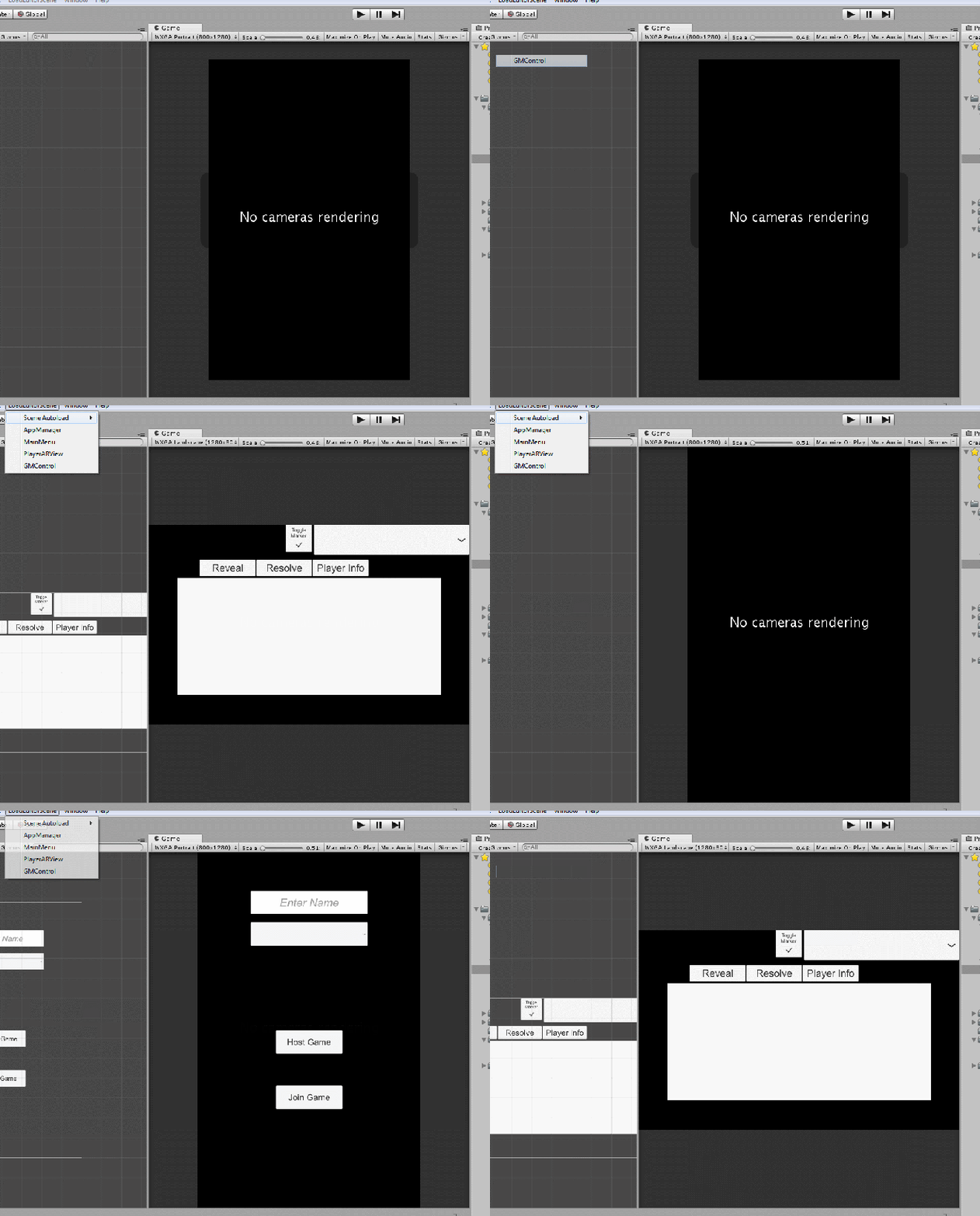
First post of the year, huzza!
In ramping up my workload again after a draining holiday, I decided that I wanted to make my life slightly easier when working in Unity. There are two problems I wanted to solve:
- Having to load a “master scene” every time when testing in the editor
- Changing editor resolution when testing in both landscape and portrait
I started with number two, as I thought that would be an easier place to start.
What I wanted to do was programmically change what resolutions the editor currently is in.
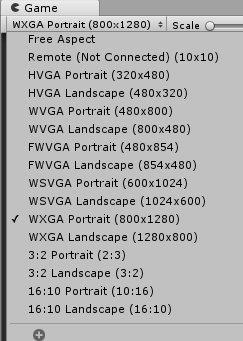
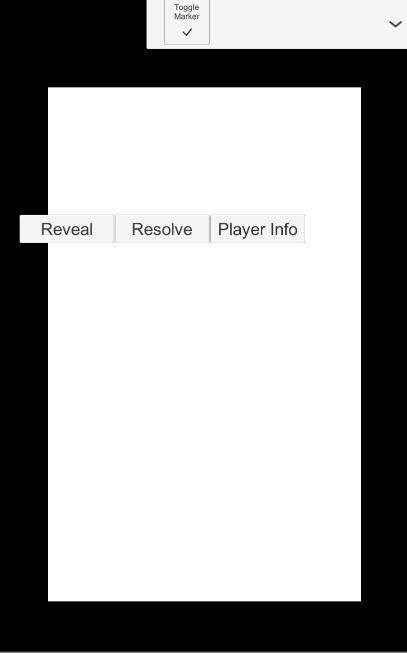
The reason that I want to change this is because when I test our product ArdentRPG, it changes from portrait to landscape mode. When testing on computer, this requires me to manually change the resolution each time it changes, otherwise the UI looks nothing like it should.
So in searching for a solution, I found what I needed at this link here. However it was too complicated for what I needed, and with the help of some of the sourcecode for the GameView window, I simplified everything down.
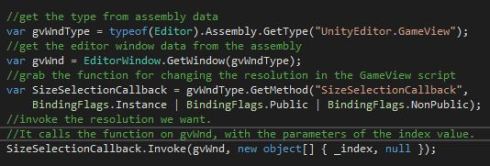
The function grabs the sourcecode running the GameView editor script, and is able to grab the function that changes the resolution for the game view.
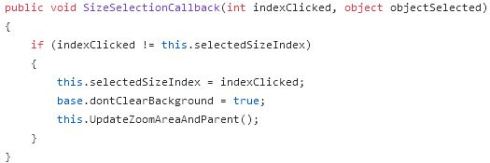
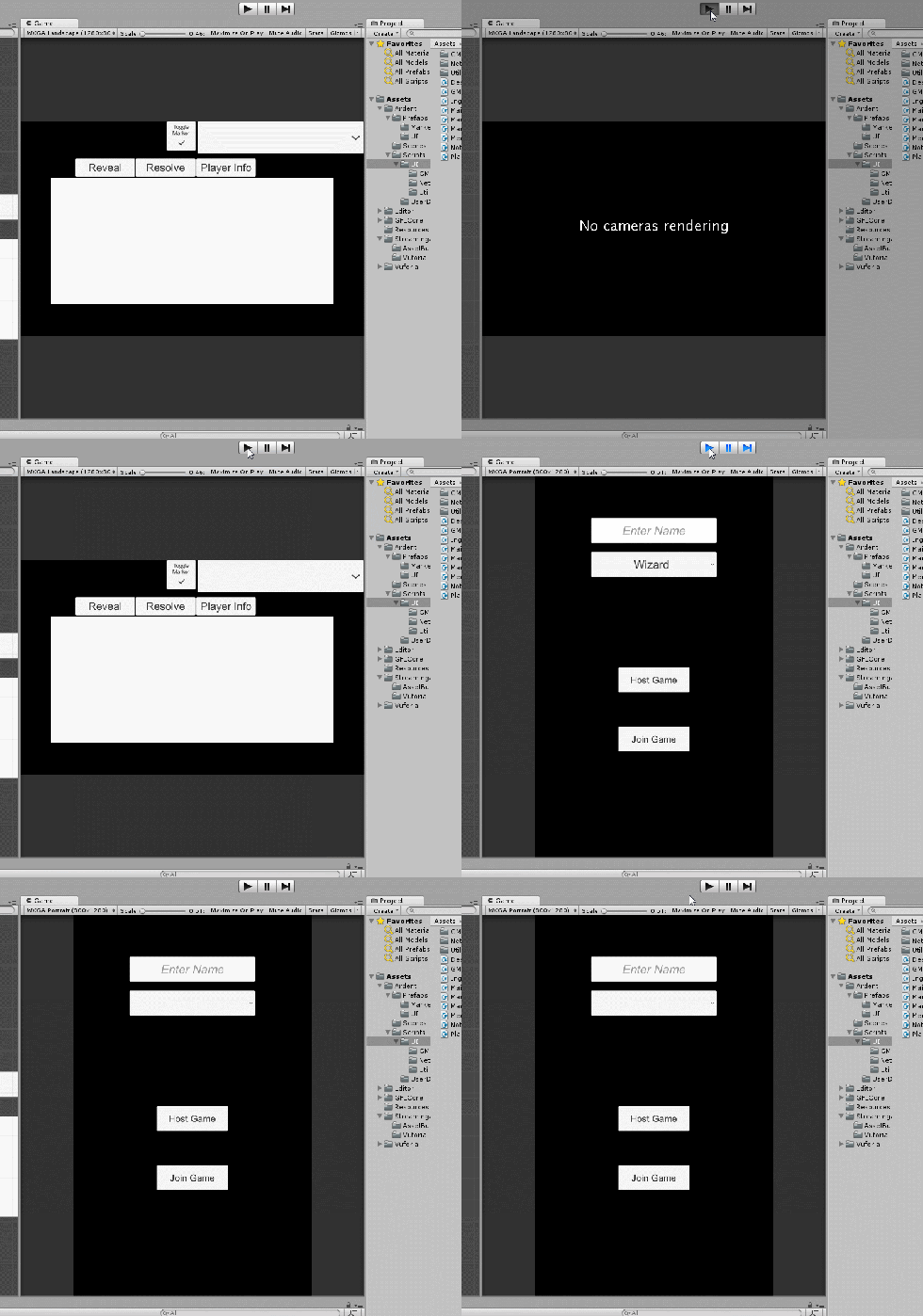
So when we pass in an index, we can manually change the resolution as we want. When I add a menu change to the toolbars options, I can swap between scenes and change the resolution as I do so, meaning I never have to re-adjust the resolution manually.
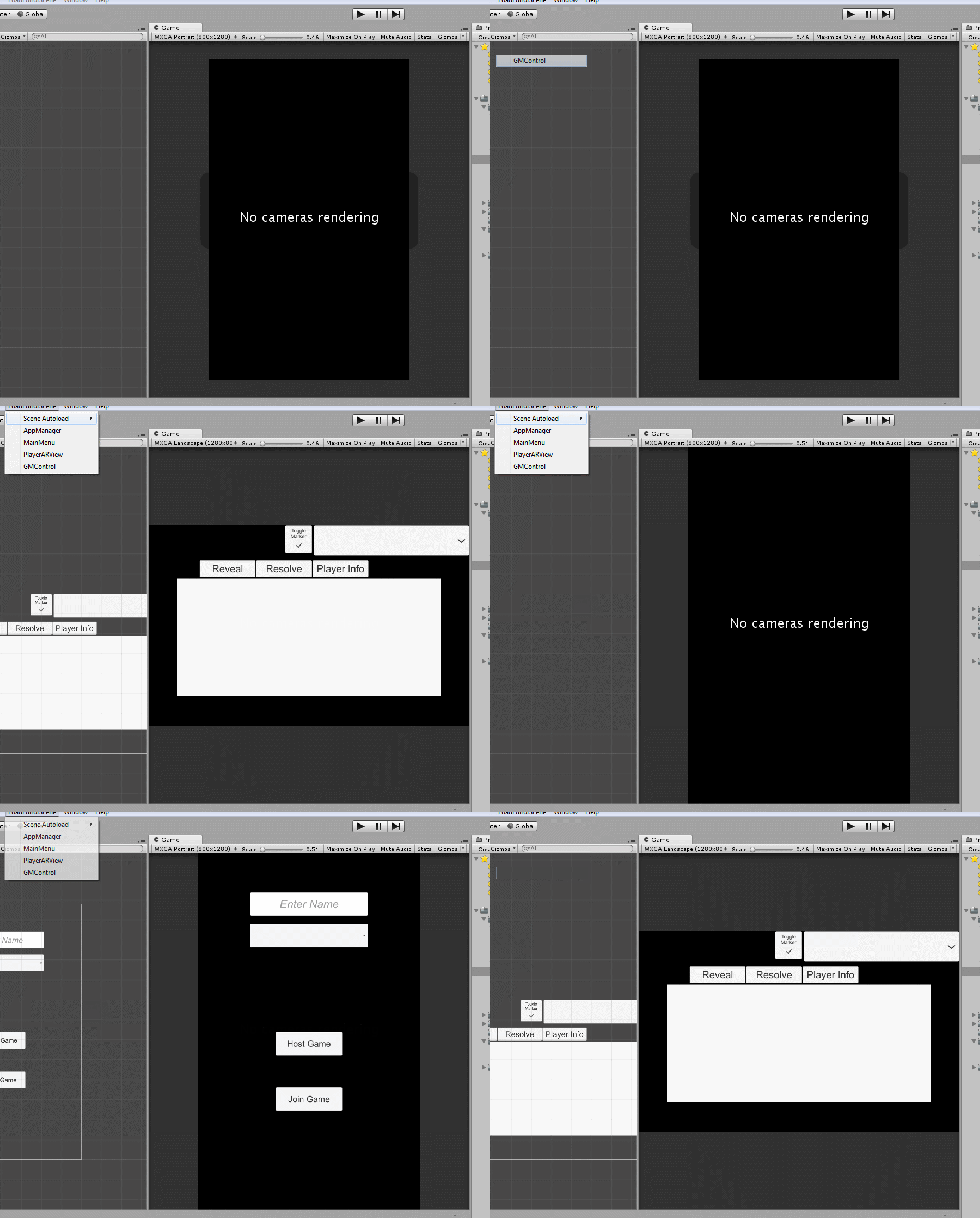
Next, the ability to auto load a scene when pressing play. ArdentRPG has a master scene “AppManager” that needs to be available at all times for the codebase to work. This is because it’s building data for Vuforia and prefabs, as well has housing various singletons that code needs to access.
This means that when working in one scene, I would need to manually swap back to the AppManager scene to test anything, which is tedious, and disrupts workflow.
My initial attempts were to simply have a script in each scene that loads the master scene. This worked, however every time it would run, it would accrue a series of null errors, as many components would still initialise before the script would activate.
I found my solution here, a Unity Wiki provided solution that did exactly what I needed. The script saves a location of any scene provided by the user, which it will automatically load when the editor attempts to play the game. In addition, it also reloads the previous scene you were using before, greatly increasing workflow speed.
However, in doing so, it broke the resolution setter for our GameView. The script would load the previous scene, but not know to set the resolution. To fix this, I needed to go back to the window changer script, and be able to retrieve the current index of the resolution value. Turns out the GameView.cs script had exactly that stored away.
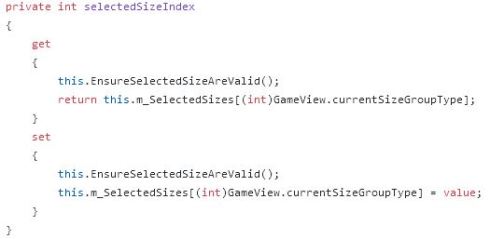
So by creating another function, we can grab that variable and store it in the editor preferences so that we can activate the previous resolution.
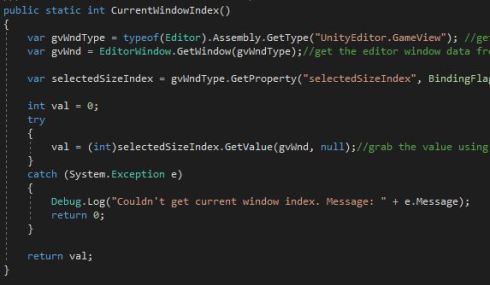
We get the same window data as before, but this time we use reflection to get the property we want, and then get the value from that window and return it.
Then over at the scene loader script, we can save and load that variable whenever the game plays:
//On game start: Save index and load masterscene
PreviousIndex = SetEditorGameWindowSize.CurrentWindowIndex();
EditorSceneManager.OpenScene(MasterScene);//On game end: Load previous index and open previous scene
SetEditorGameWindowSize.SetGameWindowSizeAndroid(PreviousIndex);
EditorSceneManager.OpenScene(PreviousScene);
//saving the index in editor prefs
private static int PreviousIndex
{
get { return EditorPrefs.GetInt(cEditorPrefPreviousIndex, 0); }
set { EditorPrefs.SetInt(cEditorPrefPreviousIndex, value); }
}
Now we can go back and forth from any scene and any resolution without losing our previous resolution.
 Caleb Barton | Games Programmer