For some interdisciplinary practices, we were given the task of helping the Studio 2 students with some form of visual effects in a game. The game they were making was an “interactive music video”. The group I was assigned to were making a game to slow and calm kind of song, with an interesting effect that made the player look like they were traveling along a curved earth (take note of this, because it becomes an issue later).

There were a few issues finding a time slot that worked for both myself and the other group, so finding out what visual effects they wanted took a bit longer than expected. However, when meeting with one of the designers, I didn’t get much in terms of goals to work towards. I ended up with the task of making interactable trees wave when clicked.
I went to start on the tree waving. I decided early on to use a shader to manipulate the vertexes of the model directly, and that I could use a sin wave calculation to do so. I could do animations, but I didn’t have the knowledge of how to set something like that up.
Initial experiments were not helpful to what I was trying to do. I was having trouble manipulating individual vertexes in a way that made it look like a wave. I kept ending up moving the entire object left and right in a sin formation. Eventually I stumbled on this blog that introduces Unity shaders, and did the exact thing I was looking for.
v.vertex.x += sin( _Time.y * _Speed + v.vertex.y * _Amount ) * _Distance;
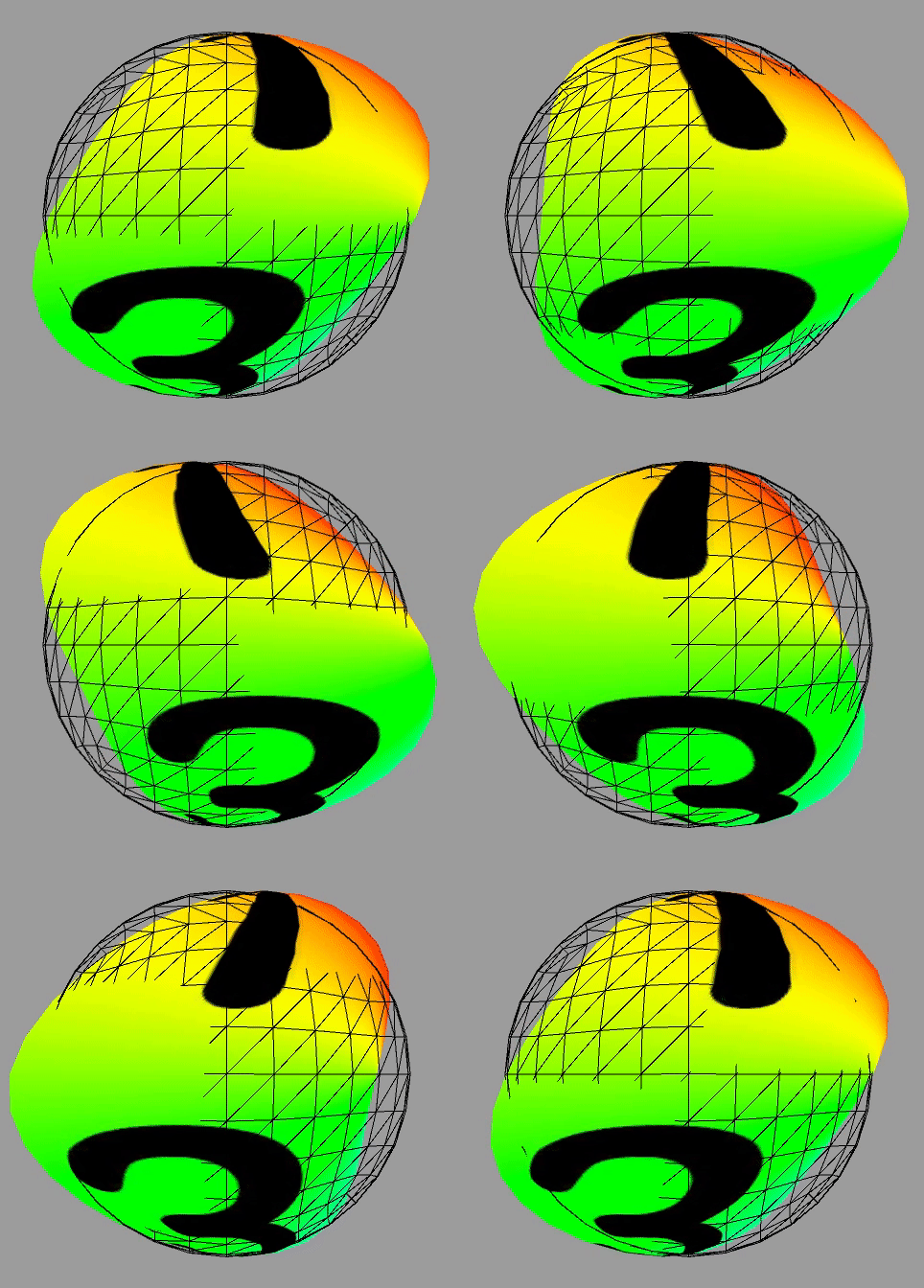
This allowed an object to wave along in a sin way. However, the tops of trees are what moves, not the trunk and base like the image shows. So I implemented a code that increases the wave distance the higher the vertex is on the y axis.
//do a sin wave along the model. The higher the vertex, the more it moves
v.vertex.x += sin((_Time.y * _Speed) + v.vertex.y * _Frequency) * (_Distance * v.vertex.y);
However, this revealed another problem, that the wave starts from the middle of the object instead of the bottom. This was fixed by getting an absolute of the y value instead.
float a = abs(v.vertex.y + .5);
v.vertex.x += sin((_Time.y * _Speed) + v.vertex.y * _Frequency) * (_Distance * a);
This created a very nice tree like wave. That doesn’t move on the bottom, and moves more the higher up it is.
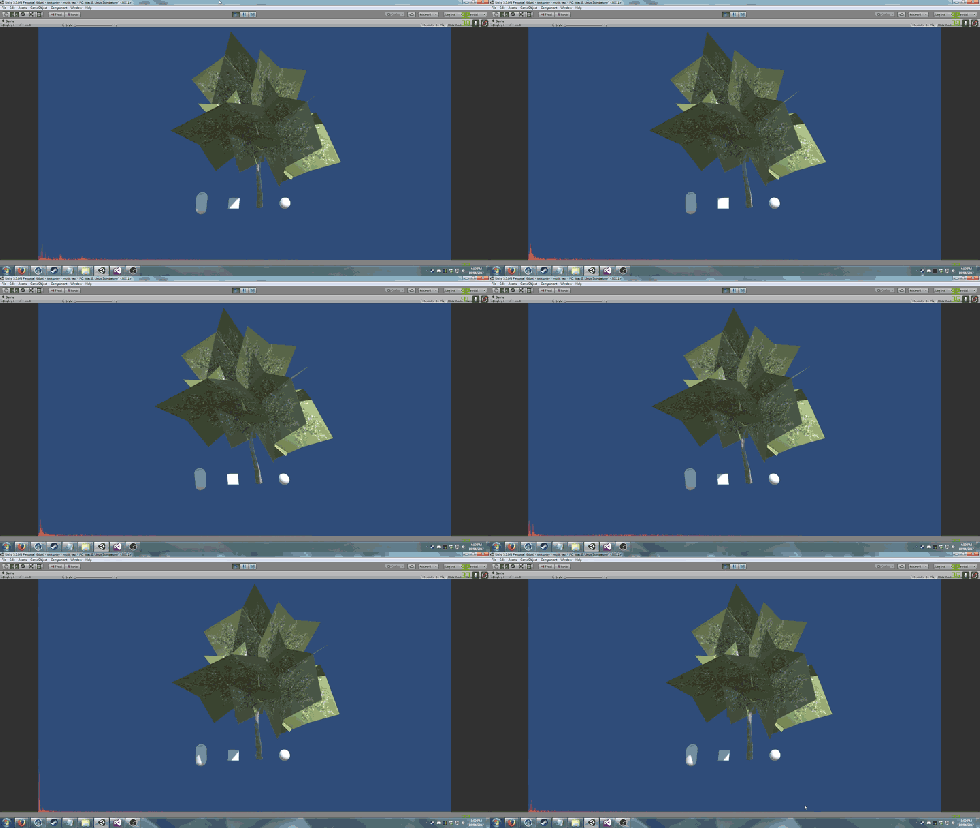
In the c# script, the variables of Speed, Frequency, and Distance are passed into the shader through the inspector. Because the game is a music video, I decided to try and increase and decrease the speed based on the frequency of the music. Using code we developed in class, I read in the current music frequency and average the first 10 or so channels to get a speed to send to the shader.
aud.GetSpectrumData(spectrum, 0, FFTWindow.Triangle);
for (int i = minIndex; i < maxIndex; ++i)
{
tempHolder += spectrum[i];
++tempToDivide;
}avg = (tempHolder / tempToDivide) * musicMod;//get the average and multiply it to have a meaningful effect on the speed
waveSpeed = Mathf.Lerp(waveSpeed, avg, Time.deltaTime * 4f);//lerp it between the current speed and the average
waveSpeed = Mathf.Clamp(waveSpeed, 1, 99);//bottom the speed at one.
This works, however there is a problem. The speed is being multiplied by the current time value in the shader for the sin wave. So when multiplying the speed value, the wave moves into the “future”. But when the speed value is less than the previous value, the wave goes backwards instead of slowing down or speeding up. This meant that the wave was constantly jerking backwards and forwards depending on the song.
This was a problem I didn’t end up fixing. The primary reason I didn’t fix it was because I discovered that the designers need to build their game for a webGL build, and the GetSpectrum() function doesn’t work for it.
Next, I had to implement the waving into the game itself. This turned out to be a problem for a few reasons. The asset the studio 2 group were using for the world bending was primarily made in a shader, and I had to integrate the two shaders together.
Thankfully, BattleHub (who made the asset) implemented a function just for this. I just had to include this code at the start:
#include “Assets/Battlehub/HorizonBending/Shaders/CGIncludes/HB_Core.cginc”
And this code just above my shader code:
HB(v.vertex);
//the code
This got the trees waving and such, however, this produced another problem.
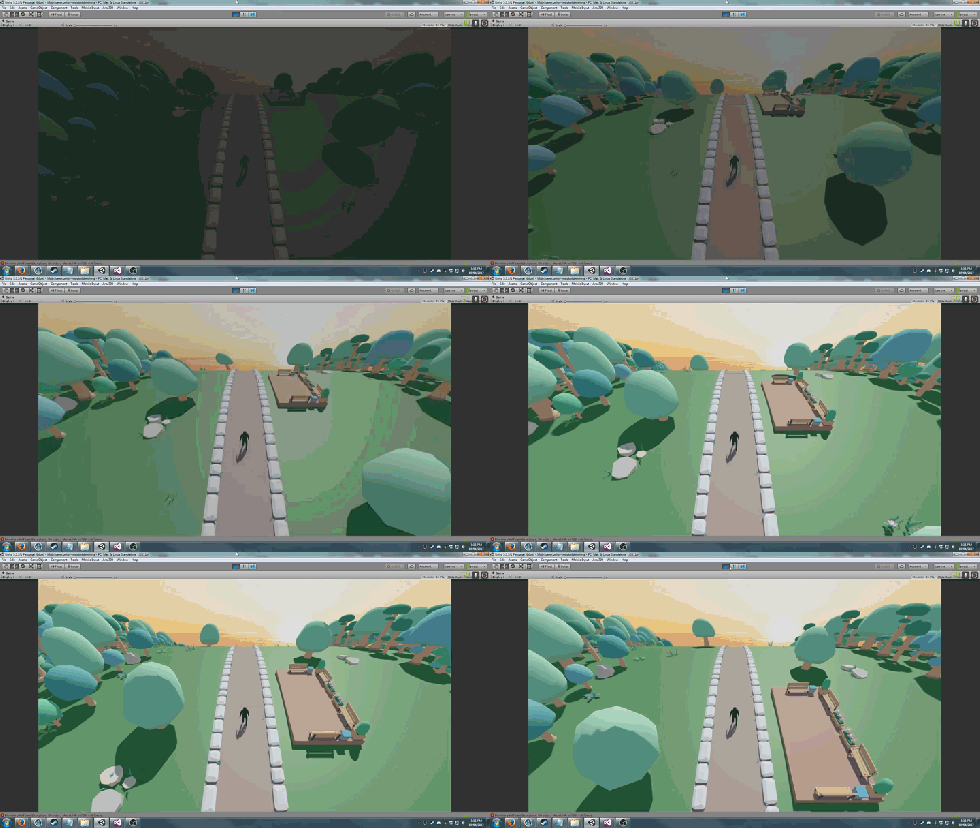
As you can see in the gif, the trees are going weird as shit in the distance, but getting better the closer they are. This is because the Horizon bending shader is manipulating the vertex locations, and my shader is also doing that, except that my vertexes are still using the game object position, which isn’t being changed by either shader. So when my shader is querying where its y location is, it is something like -100, and as a result, the waving is ludicrous until the y value gets close to the game object location.
I somewhat solved this by passing the objects position into the shader, and then offsetting the gameobject position by the vertex position. This creates a near enough position of where the tree is, and stop the rave party in the distance.
float yDist = _Dist.y – v.vertex.y;
float a = abs(v.vertex.y + .5) – yDist;
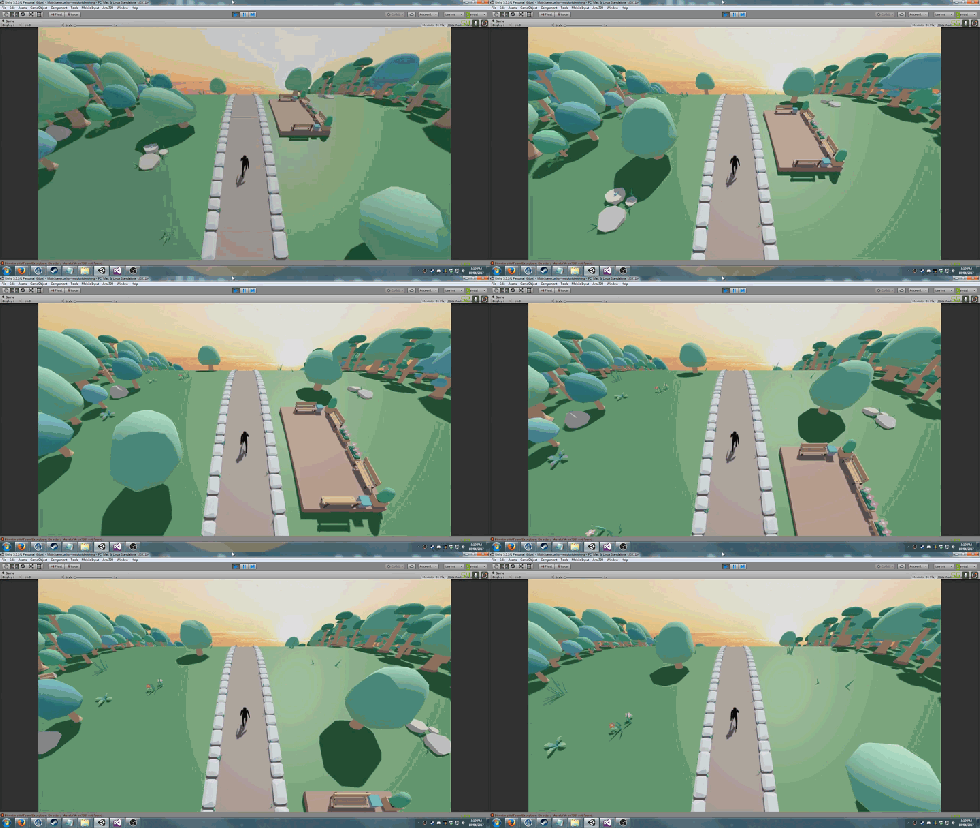
This does mean that trees will only ever start waving when their vertex.y component is above 0 (which is when you get close to them), and I couldn’t see any other solution to change this.
And that was how I used shaders to help design visual effects for a project.
 Caleb Barton | Games Programmer